Multi-resolution spectral resonance processor. Finds what's genuinely resonating and pulls it down in real time — never a static, over-EQ'd result.
Version 2.0Formats AU · VST3macOS 10.15+
Part One
The simple version
Everything you need to get a great result today, no plugin manual required. The rest of this document is here if you want it — not because you need it.
DE-RES PRO finds what's sticking out — harsh, boxy, ringy — and quietly turns just that down, only while it's actually happening.
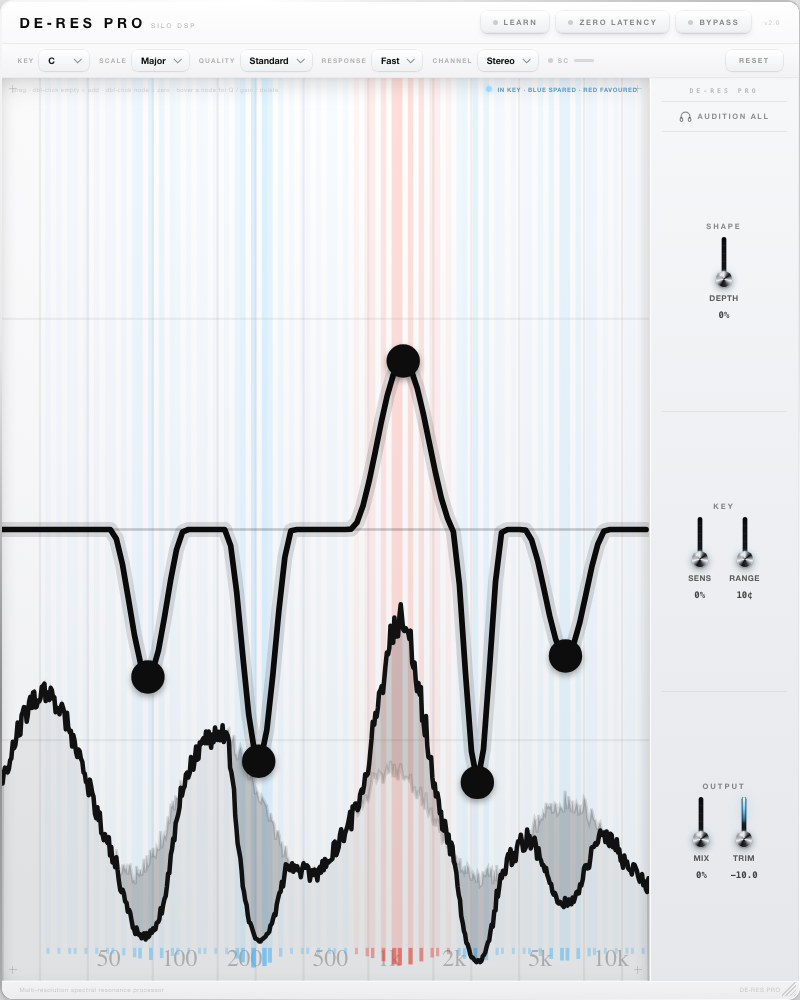
The plugin, open, doing its job. Five nodes — five spots it's watching.
Drag a node down
That's the whole interface. Down = quieter there. Up = louder there.
Or hold Learn
While the problem plays. Let go — it places the nodes for you.
Pick the key
So it knows the difference between a real note and a problem.
Everything else you'll see on screen, in plain terms:
Zero Latency
No added delay. Turn this on while recording or performing live; leave it off otherwise for the better-sounding default.
Quality
How precisely it can tell frequencies apart. Higher is more precise but adds a touch of delay — fine to leave on Standard unless you're not tracking live.
Response
How quickly it reacts. Fast catches short hits; Smooth ignores them and only responds to longer, sustained sounds.
Channel (Mid-Side)
Leave on Stereo. Mid-Side is for when you specifically want to treat the centre of your mix differently from the sides.
SC (Sidechain)
It still processes your original sound — this just lets it decide where to react by listening to a different source instead, e.g. keying off a clean reference take.
Bypass
Turns the whole effect off for a moment, so you can A/B against the untouched sound.
That's it. Everything below is for when you want more control — not because you need it to sound right.
Part Two
The full picture
How every control works, what it's actually doing under the hood, and why it's built the way it is. A reference, not a tutorial — jump to what you need.
The graph is the plugin. Everything else is one hover away from it.
Drag
Move an existing node's frequency and amount.
Double-click empty
Add a new node (up to 10 active at once).
Double-click a node
Zero it out in place, without deleting it.
Hover a node
Opens its popover — Gain, Q, Sidechain, Solo, delete.
Before / after
The soft filled curve is the incoming spectrum; the crisp line on top is the live predicted result, with the difference between them shaded — you're always seeing exactly what DE-RES PRO is doing right now, not a static curve.
Key-zone bands
Coloured bands mark in-key frequencies being treated specially. Blue = a cut being softened (spared). Red = a boost being pushed harder (favoured). They only light up where something real is happening right now — not a static grid of "these are the notes in the key."
Per-Node Controls
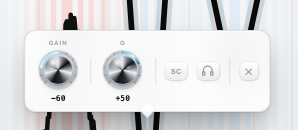
Hover any node to open its popover.
Left to right: Gain, Q, SC, Solo (headphone), delete.
Gain
−100% to +100%. How hard this node reacts when it detects a resonance. Negative values suppress; positive values enhance an already-resonant frequency instead of removing it.
Q
How broad or narrow the node's reaction is — from a wide, gentle bell to a narrow, surgical notch.
SC
Routes this one node's detection to the sidechain input instead of the main signal — it still reduces your main signal, just decides where to react based on the sidechain instead. Any mix of nodes can be on sidechain while the rest listen to the main input — see Sidechain.
Removes the node. Disabled below 3 active nodes — DE-RES PRO always needs at least 2 to function meaningfully.
Audition & Solo
Every node, and the rack, has a headphone icon. All of them follow the exact same two rules, so once you've learned it once, you know it everywhere.
Hold
Momentary. While held, you hear only what that node is removing or adding — isolated from the rest of the mix, and narrowed to just that node's own frequency so you can hear exactly what's going on there. Let go and it's gone, instantly, with nothing left changed.
⌘ / Ctrl-click
Lock. Click the same way again to release. Locked nodes stack — lock two or three at once to audition how several problem spots interact together, without needing three hands.
Master — Audition All
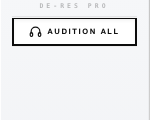
Top of the right rack. Same hold-and-lock rules, applied to every node that currently exists at once — hold it to hear everything DE-RES PRO is doing to the signal, in one press, without hunting through nodes one at a time.
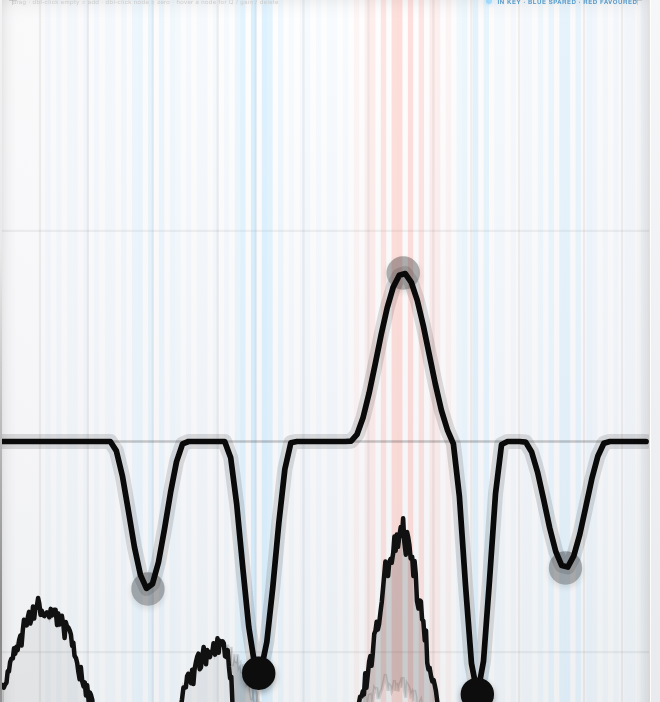
⌘-click locked — stays solid, still fully in the mix
Not locked — dims so you can see what's outside the audition
Dimmed doesn't mean disabled — every node keeps processing at its real setting underneath. The dimming is only telling you what the current ⌘-click audition is focused on.
Locked (either a node or the master), the headphone button switches to this solid, ringed look — white fill, black outline — the same "on" language used everywhere else in the plugin, so a glance at the button tells you it's engaged.
Header
Learn
Press and hold while a representative section plays. DE-RES PRO listens for as long as you hold it, analyses what it captured on release, and places nodes on the genuine resonances it found — silence-gated, capped at 6 nodes, gentle by default. A starting point, not a final setting.
Zero Latency
Swaps the default lookahead (linear-phase, higher quality) engine for a minimum-phase tracking engine with no added latency — for tracking or live use. Quality locks to a single internal tier while engaged.
Bypass
Bypasses processing entirely. The working area dims so the bypassed state is unmistakable at a glance.
Toolbar
Key
The musical key DE-RES PRO should protect. Chromatic disables key-awareness entirely.
Scale
The 13 scales below. Order matters only in that it's how the DSP resolves the choice — pick by name, not position.
Quality
Standard / High / Ultra — trades window size, and therefore latency, for frequency resolution: 1024 / 2048 / 4096 samples. Higher resolves closer resonances more precisely but adds latency. Safe on Standard for tracking; worth raising for mix-bus or mastering work where latency doesn't matter.
Response
Fast / Normal / Smooth — how quickly the detector reacts before deciding something's worth acting on. Fast catches transients and lets go fast; Smooth only reacts to sustained tones and ignores quick hits. Think of it as the detector's own attack/release.
Channel
Stereo or Mid-Side processing.
SC indicator
Sidechain is automatic — there's no on/off switch. The light and meter show you when real signal is present on the sidechain bus and detection has engaged.
Reset
Returns Depth, Key Sensitivity/Range, Mix, Output Trim, and Key/Scale to their defaults, and resets your nodes to 5 evenly-spread starting points. Sidechain, Quality, Response, Channel, Bypass, and Zero Latency are left alone — Reset never touches your routing decisions.
MajorMinorDorianPhrygianLydianMixolydianLocrianHarmonic MinorMelodic MinorMajor PentatonicMinor PentatonicBluesWhole Tone
Right Rack
Depth (Shape)
A global intensity control on top of whatever your nodes are set to do. 0% is fully transparent regardless of node settings; 100% is normal strength; up to 200% pushes the same node layout twice as hard without re-tuning each one.
Sens
Key Sensitivity — how strongly in-key content is protected from being cut. Higher values spare more of a resonance that happens to land on a note in your chosen key/scale.
Range
Key Tolerance, in cents — how close to the exact note counts as "in key." Tighter protects only precisely-tuned content; wider is more forgiving of natural pitch drift and vibrato.
Mix
Dry/wet blend of the whole effect.
Trim
±10 dB of output gain, applied after everything else — for level-matching against bypass.
Sidechain
Automatic, and set per node. Route any source into the plugin's Sidechain input bus in your DAW; the instant real signal arrives, DE-RES PRO uses it to decide where to react for every node with its SC toggle on — no master switch to remember. If nothing's connected, or the source goes silent, sidechain-enabled nodes transparently fall back to the main input, so nothing breaks or goes quiet if you haven't set one up at all.
This is detection only, the same way a keyed compressor works — DE-RES PRO always reduces your actual signal, at whatever frequencies are genuinely resonating there. The sidechain only changes how it decides where those frequencies are: a node with SC on treats an overlapping resonance in the sidechain source as the cue to act on your signal, so if the same frequency is ringing in your reference take, that's what gets pulled down in what you're actually processing.
Use it to de-ess or de-harshen a vocal against a clean reference take, or tame a guitar bus by keying off the DI — the DI tells DE-RES PRO where to look, the amp signal is what actually gets treated.
Key & Scale
Real instruments and voices resonate on the notes they're actually playing — that's not a flaw to remove, it's the music. Set a Key and Scale, and content landing on an in-key note is protected from being cut, scaled by Key Sensitivity, while genuinely inharmonic resonances nearby still get suppressed normally.
Push a node up inside a key, and the same awareness works in reverse: in-key boosts are favoured, leaning into what's musically relevant rather than treating a boost as blind to the key. This is what makes deliberately overdriving a chord's worth of in-key resonances sound like a tone, rather than noise.
In-key cut being spared
In-key boost being favoured
Output Safety Limiter
Always on, the last thing that touches the signal — no bypass, no control surface. Pushing several nodes hard, for example boosting a stack of in-key resonances for a creative "tone" effect, can genuinely drive the output past 0 dBFS. The limiter exists so that's a loud effect, never a clipped one.
Ceiling
−0.3 dBFS
Attack
Instant — no lookahead, so it adds no latency, and no sample can ever cross the ceiling.
Release
Smoothed (~80 ms), so it recovers cleanly instead of pumping or chattering.
Keyboard Shortcuts
Active only while your pointer is over the graph — they won't collide with your DAW's own shortcuts or musical-typing keyboards.
Key
Action
1–9, 0
Select node 1–10
← / →
Nudge selected node's frequency (hold Shift for fine)
↑ / ↓
Nudge selected node's amount (hold Shift for fine)
[ / ]
Narrow / widen selected node's Q
A
Cycle selected node's channel target (Both → A → B)
S
Toggle sidechain detection for the selected node
Delete / Backspace
Remove selected node (minimum 2 stay active)
Typical Placement
Track / Bus→EQ→DE-RES PRO→Compressor→…
Works as an insert, early in the chain — ideally before compression, so it's reacting to the source's natural dynamics rather than an already-squashed signal. On a mix bus or master, it's equally at home late in the chain, tightening up problem frequencies that only became audible once everything was summed.
Tuning Tips
Vocal de-essing / de-harshing
Depth 80–110% Key Sens 70–85%
2–4 nodes, narrow Q, on sibilant/nasal spots Mix 100%